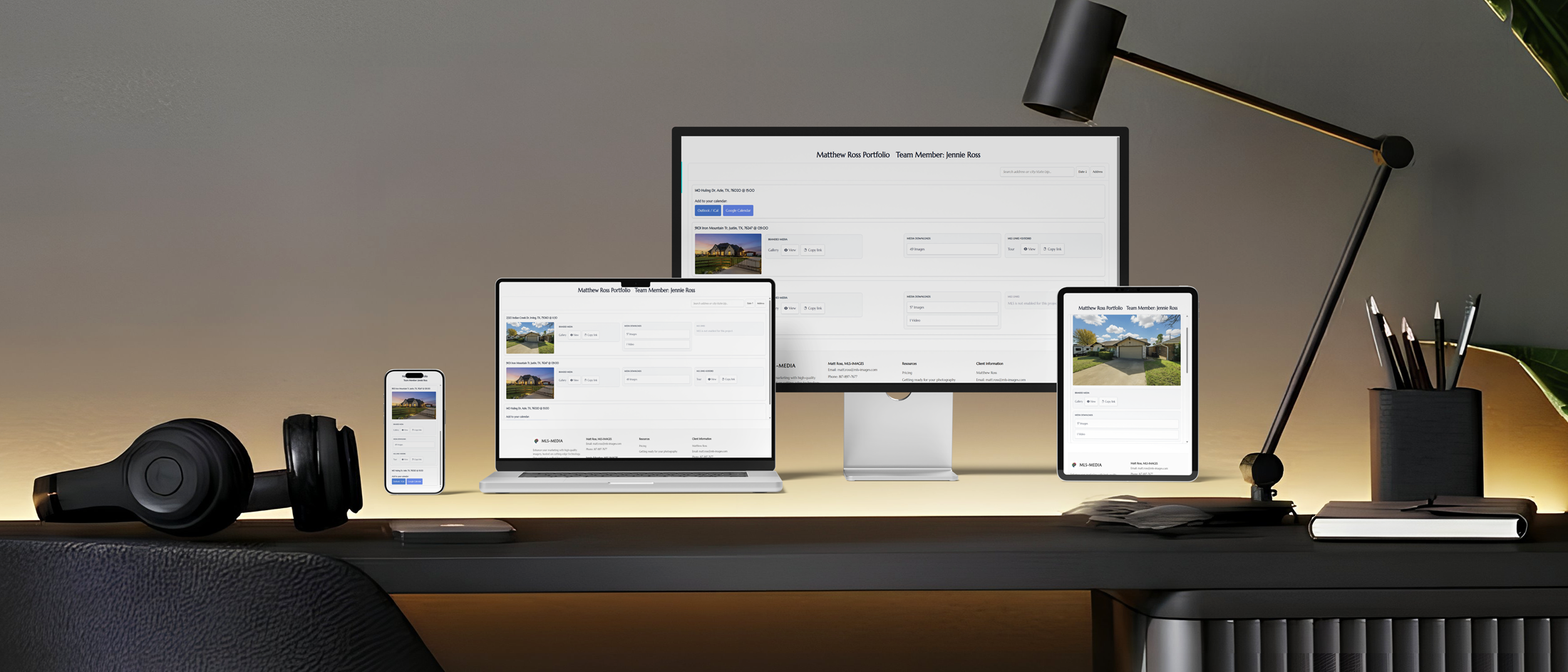
Accessing Your Portal
Your Client views are protected for your protection of your media.
- Authorization Code: If prompted, enter your 10-digit authorization code. By default, this is your phone number.
- How to Enter: Type the digits one by one or paste the full code.
- Trouble logging in? Click Forgot Code to have a new one emailed to you instantly, or call us for an even faster reply!
Managing Your Portfolio
Your dashboard keeps all your properties organized in one place.
Search: Use the search bar to filter projects by address, city, state, or zip code in real time.Sort: Click the Date or Address buttons to toggle the list order (↑ or ↓).Team Access: Any team members authorized to view your media will be listed at the top of the page.
Project Status and Actions
Project cards change based on where we are in the process:
Awaiting Confirmation: Click the green Tap to Confirm button to lock in your shoot time.Confirmed: Once confirmed, use the Add to Calendar buttons (Google or Outlook/iCal) to save the appointment.Note: To reschedule a confirmed shoot, please call us directly.Delivered: Once the shoot is complete and processed, your media will appear.Arcived: Media files are removed from our server 30 days after your initial download. MLS videos and tours remain active for 180 days and can be extended upon request. If you need to access images after they have expired, we are happy to re-upload them for you.
Downloading and Sharing Media
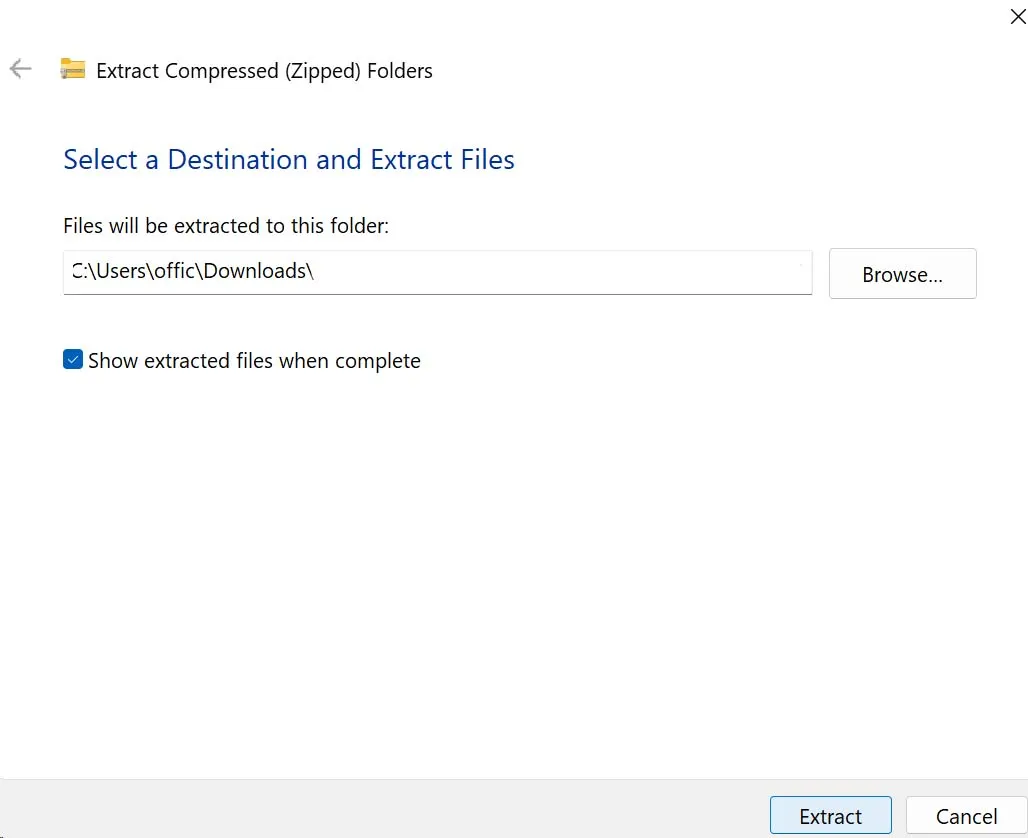
Images: Click the Images button to view the thumbnail grid. You can "Select All" or choose specific shots, then click Download Selected Images to receive a ZIP file.Videos: Click the Videos button to preview clips inline and download them.Copying Links: Use the Copy Link button next to your Branded Gallery or MLS links. A modal will pop up—click Copy and it’s saved to your clipboard.
Requesting Changes and Support
Call or text us at 817.897.7677.
Frequently Asked Questions
Q: Why can't I see my photos yet?
Answer: If your project is marked as Confirmed but not yet Delivered, it means our team is still in the editing phase. Standard turnaround is typically by the next business day. Once they are ready, the project card will automatically update with a thumbnail and a Media Downloads section.
Question: What is my default authorization code?
A: Your default code is your 10-digit phone number (digits only, no dashes or spaces). If that doesn't work, click Forgot Code to receive a reset via email.
Question: How do I share my gallery with a client or on social media?
Answer: On any Delivered project card, click the Copy link button in the Branded Media section. This saves the URL directly to your clipboard so you can paste it into an email, text, or social post.
Question:: Can I download just one or two specific photos?
Answer: Yes! Click the Images button to open the modal. Instead of clicking "Select All," simply check the box on the specific images you want and click Download Selected Images.
Question: I have a new team member. How do I give them access?
Answer: : Contact our support team with their name, email, and phone number. Once we add them, they will appear in the Team Members section at the top of your portal.
Question: What should I do if I need to reschedule a confirmed shoot?
Answer: : While the portal allows you to confirm a booking, rescheduling must be handled directly. Please call or text us at 817.897.7677 as soon as possible to find a new time slot. .
Question: How do I know if I've already downloaded these images?
Answer: Each image in the download modal displays its last download date and total download count, helping you track your activity at a glance. Downloading and extracting your media is a simple process, but the steps vary slightly depending on your computer's operating system.